
How to assign scores to quiz forms - Minform Help
minformMinform
Create a form

  • Create a form
  • Embed your form
  • Page types
  • Using Keyboard Shortcuts
  • Form History (versioning)
  • Spaces and Team members
  • View Responses

  • Zapier Integration
  • Meta (Facebook) Pixel
  • Google Analytics
  • Webhooks
  • Email notifications
  • Sync forms with google sheets

  • Form Analytics Dashboard
  • Mastering AI Prompts for Form Modification
  • Custom Code Injection
  • How to setup custom domain for your forms
  • AI Credit System for Minform
  • How to rename forms
  • How to assign scores to quiz forms
  • Enabling RTL (Right to Left) support
  • How to auto-save form response
  • Conditional Logic, Calculator, and Variable Mentions
  • How to create a multi column form
  • How to add a progress bar to a form
  • How to create a quiz form with time limit
  • Building Outcome & Personality Quizzes with AI
  • Collect Payments on Your Forms with Stripe
  • Auto-generating feedback for quiz with AI
  • Show Quiz Answers on Results Page
  • How to customize error messages in minform
  • Timer Access Codes for Secure Quizzes
  • Add Media to Questions
  • How to Protect Forms with CAPTCHA
  • Translate Forms to Any Language
minformMinform

Build smarter quizzes and forms with AI. Product recommendations, lead qualification, assessments — describe what you need, AI builds it.

Become an Affiliate

Product

  • Features
  • Integrations
  • Pricing
  • AI Form Builder
  • AI Survey Builder
  • AI Quiz Maker
  • AI PDF to Quiz Maker
  • Lead Gen Quiz
  • Vocabulary Quiz Maker
  • Image to Quiz Maker

Free Tools

  • PDF to Quiz
  • Vocabulary Quiz
  • Spelling Test
  • Multiple Choice Quiz
  • YouTube to Quiz
  • URL to Quiz
  • Grammar Quiz
  • Reading Comprehension
  • Product Recommendation
  • True/False Quiz
  • Image to Quiz
  • View All Tools

Resources

  • Templates
  • Blog
  • Help Center
  • Changelog
  • Affiliate Program

Compare

  • Minform vs Typeform
  • Minform vs Google Forms
  • Minform vs JotForm
  • Minform vs SurveyMonkey
  • Minform vs Tally

Support

  • Privacy Policy
  • Terms of Service

© 2026 Minform. All rights reserved.

How to assign scores to quiz forms

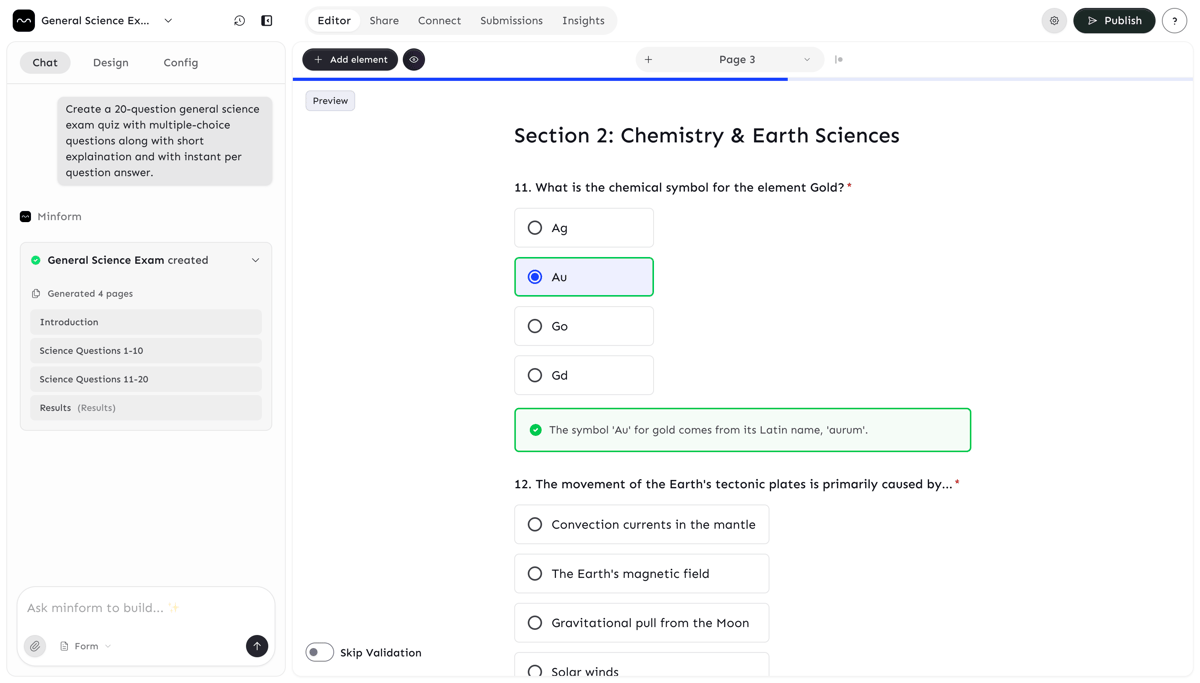
Scoring adds structure and purpose to quizzes. It helps evaluate performance, keeps participants engaged, and ensures that results are both measurable and meaningful. In Minform, you can let AI handle scoring or take full control yourself.

Let AI Do the Work

You can quickly create a quiz with scoring by giving AI a simple prompt. For example:

  • Create a Maths quiz with 10 questions
  • Make a History quiz about World War II
  • Generate a Personality quiz about leadership styles.
  • Build a Trivia quiz on general knowledge.

Minform will instantly generate the quiz with questions, scores, and feedback already in place. In most cases, it is ready to use without any changes.
Screenshot 2026-04-02 at 5.07.05 PM

Manually Assigning Scores

If you need more control over scoring or want to make adjustments:

  1. Click on any quiz question.
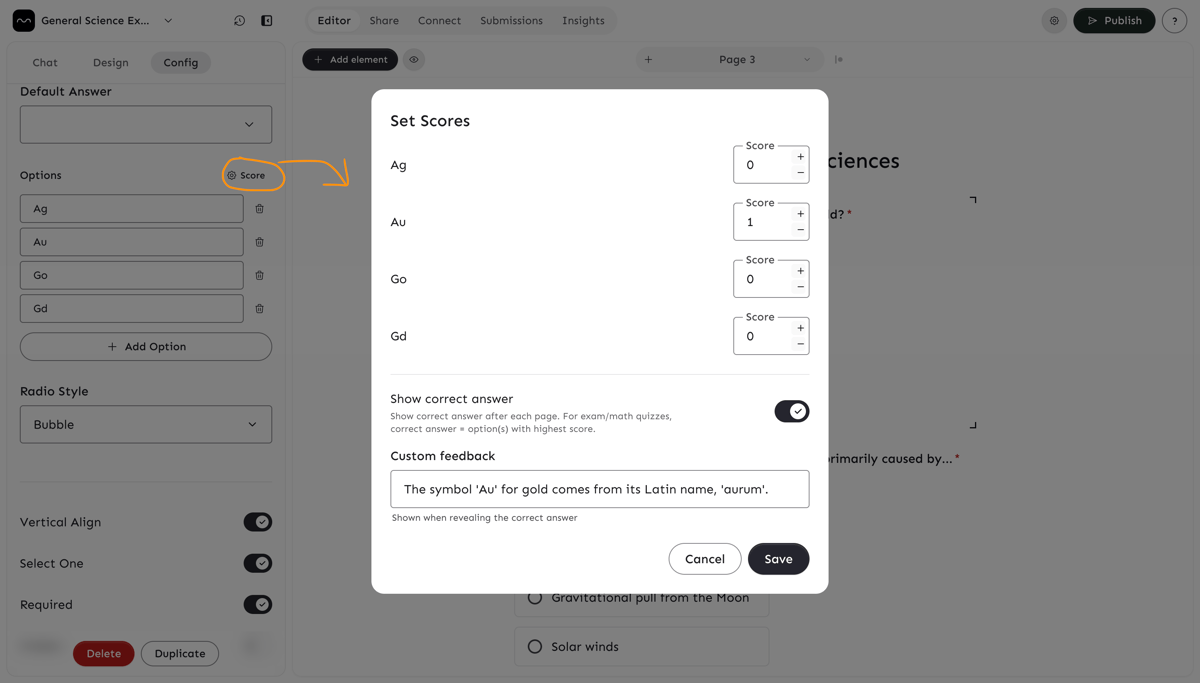
  2. In the element settings, select the Score button next to the options textarea.
  3. A dialog box will appear where you can:
    • Assign scores to each answer option.
    • Enable Show correct answer so participants can see the correct answer after selection.
    • Add Custom feedback to display when the correct answer is revealed.
Screenshot 2026-04-02 at 5.05.51 PM

This approach lets you fine-tune your quizzes for exams, training sessions, or fun challenges while ensuring participants get clear and useful feedback.