How to auto-save form response - Minform Help
minformMinform
Create a form

  • Create a form
  • Embed your form
  • Page types
  • Using Keyboard Shortcuts
  • Form History (versioning)
  • Spaces and Team members
  • View Responses

  • Zapier Integration
  • Meta (Facebook) Pixel
  • Google Analytics
  • Webhooks
  • Email notifications
  • Sync forms with google sheets

  • Form Analytics Dashboard
  • Mastering AI Prompts for Form Modification
  • Custom Code Injection
  • How to setup custom domain for your forms
  • AI Credit System for Minform
  • How to rename forms
  • How to assign scores to quiz forms
  • Enabling RTL (Right to Left) support
  • How to auto-save form response
  • Conditional Logic, Calculator, and Variable Mentions
  • How to create a multi column form
  • How to add a progress bar to a form
  • How to create a quiz form with time limit
  • Building Outcome & Personality Quizzes with AI
  • Collect Payments on Your Forms with Stripe
  • Auto-generating feedback for quiz with AI
  • Show Quiz Answers on Results Page
  • How to customize error messages in minform
  • Timer Access Codes for Secure Quizzes
  • Add Media to Questions
  • How to Protect Forms with CAPTCHA
  • Translate Forms to Any Language
minformMinform

Build smarter quizzes and forms with AI. Product recommendations, lead qualification, assessments — describe what you need, AI builds it.

Become an Affiliate

Product

  • Features
  • Integrations
  • Pricing
  • AI Form Builder
  • AI Survey Builder
  • AI Quiz Maker
  • AI PDF to Quiz Maker
  • Lead Gen Quiz
  • Vocabulary Quiz Maker
  • Image to Quiz Maker

Free Tools

  • PDF to Quiz
  • Vocabulary Quiz
  • Spelling Test
  • Multiple Choice Quiz
  • YouTube to Quiz
  • URL to Quiz
  • Grammar Quiz
  • Reading Comprehension
  • Product Recommendation
  • True/False Quiz
  • Image to Quiz
  • View All Tools

Resources

  • Templates
  • Blog
  • Help Center
  • Changelog
  • Affiliate Program

Compare

  • Minform vs Typeform
  • Minform vs Google Forms
  • Minform vs JotForm
  • Minform vs SurveyMonkey
  • Minform vs Tally

Support

  • Privacy Policy
  • Terms of Service

© 2026 Minform. All rights reserved.

How to auto-save form response

MinForm allows you to enable Auto-Save Form Progress so respondents never lose their data if they accidentally close or refresh the browser.

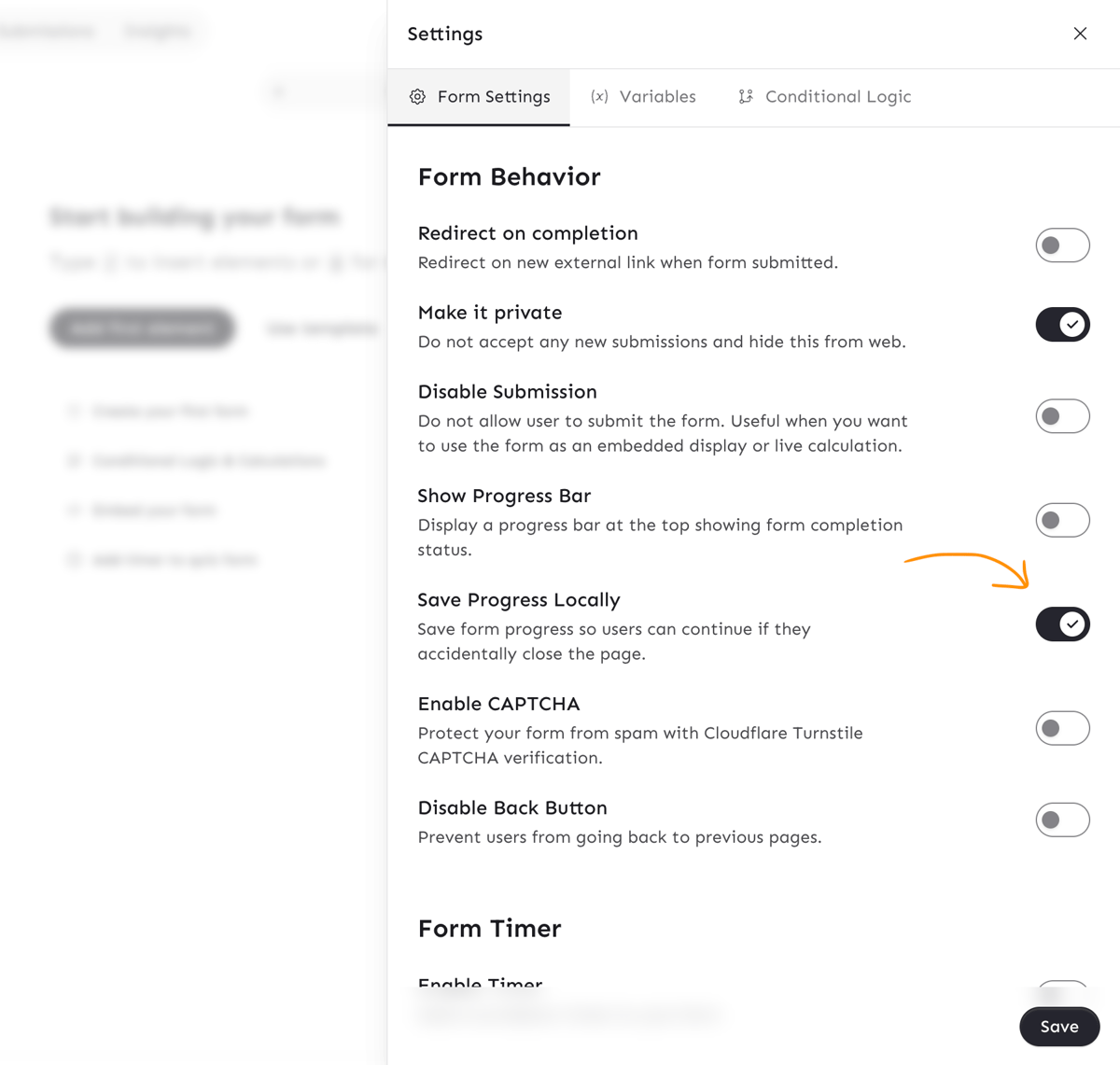
This feature can be toggled via Form Settings → Save Progress Locally.
Screenshot 2026-04-02 at 4.59.42 PM

How It Works

  • When enabled, form responses are automatically saved in the user's browser as they type.
  • If the user exits or refreshes the page, their progress is preserved.
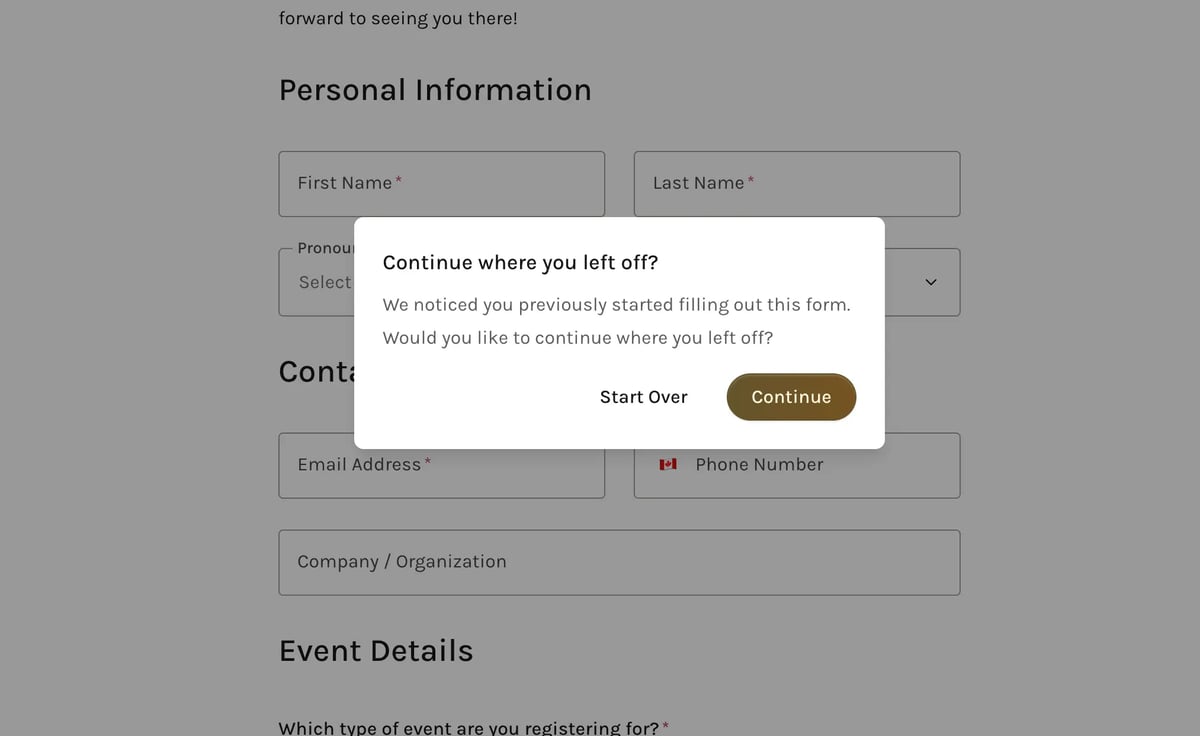
  • When they return to the form, a “Continue where you left off?” modal appears, giving them the option to:
    • Continue from their saved responses.
    • Start Over with a blank form.

Steps to Enable Auto-Save

  1. Open your form in the MinForm editor.
  2. Navigate to Settings → Form Settings.
  3. Toggle Save Progress Locally to ON.
  4. Click Save to apply your settings.

Important Notes

  • Progress is saved only in the user’s browser using local storage.
  • Clearing browser data or using incognito/private mode will remove saved data.