Sync forms with google sheets - Minform Help
minformMinform
Create a form

  • Create a form
  • Embed your form
  • Page types
  • Using Keyboard Shortcuts
  • Form History (versioning)
  • Spaces and Team members
  • View Responses

  • Zapier Integration
  • Meta (Facebook) Pixel
  • Google Analytics
  • Webhooks
  • Email notifications
  • Sync forms with google sheets

  • Form Analytics Dashboard
  • Mastering AI Prompts for Form Modification
  • Custom Code Injection
  • How to setup custom domain for your forms
  • AI Credit System for Minform
  • How to rename forms
  • How to assign scores to quiz forms
  • Enabling RTL (Right to Left) support
  • How to auto-save form response
  • Conditional Logic, Calculator, and Variable Mentions
  • How to create a multi column form
  • How to add a progress bar to a form
  • How to create a quiz form with time limit
  • Building Outcome & Personality Quizzes with AI
  • Collect Payments on Your Forms with Stripe
  • Auto-generating feedback for quiz with AI
  • Show Quiz Answers on Results Page
  • How to customize error messages in minform
  • Timer Access Codes for Secure Quizzes
  • Add Media to Questions
  • How to Protect Forms with CAPTCHA
  • Translate Forms to Any Language
minformMinform

Build smarter quizzes and forms with AI. Product recommendations, lead qualification, assessments — describe what you need, AI builds it.

Become an Affiliate

Product

  • Features
  • Integrations
  • Pricing
  • AI Form Builder
  • AI Survey Builder
  • AI Quiz Maker
  • AI PDF to Quiz Maker
  • Lead Gen Quiz
  • Vocabulary Quiz Maker
  • Image to Quiz Maker

Free Tools

  • PDF to Quiz
  • Vocabulary Quiz
  • Spelling Test
  • Multiple Choice Quiz
  • YouTube to Quiz
  • URL to Quiz
  • Grammar Quiz
  • Reading Comprehension
  • Product Recommendation
  • True/False Quiz
  • Image to Quiz
  • View All Tools

Resources

  • Templates
  • Blog
  • Help Center
  • Changelog
  • Affiliate Program

Compare

  • Minform vs Typeform
  • Minform vs Google Forms
  • Minform vs JotForm
  • Minform vs SurveyMonkey
  • Minform vs Tally

Support

  • Privacy Policy
  • Terms of Service

© 2026 Minform. All rights reserved.

Sync forms with google sheets

Integrating your Minform forms with Google Sheets makes it easy to organize, analyze, and share form responses in real time. Instead of manually exporting and updating data, responses are instantly added to your selected Google Sheet.

How to connect ?

Follow these steps to connect your form with Google Sheets:

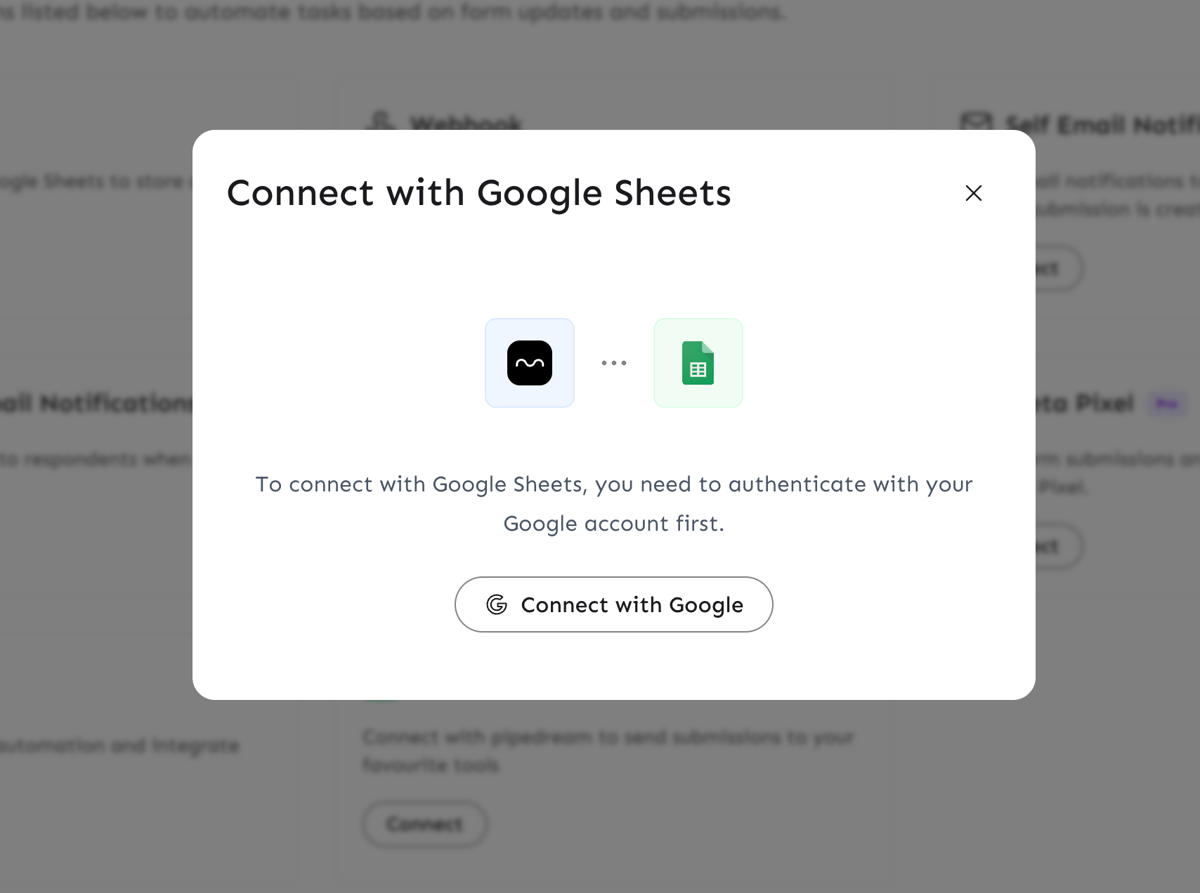
  1. Go to integration page of form and click on Connect button which will open a dialog box asking to connect with google. Click on it and you’ll be prompted to sign in with your Google account and grant access.
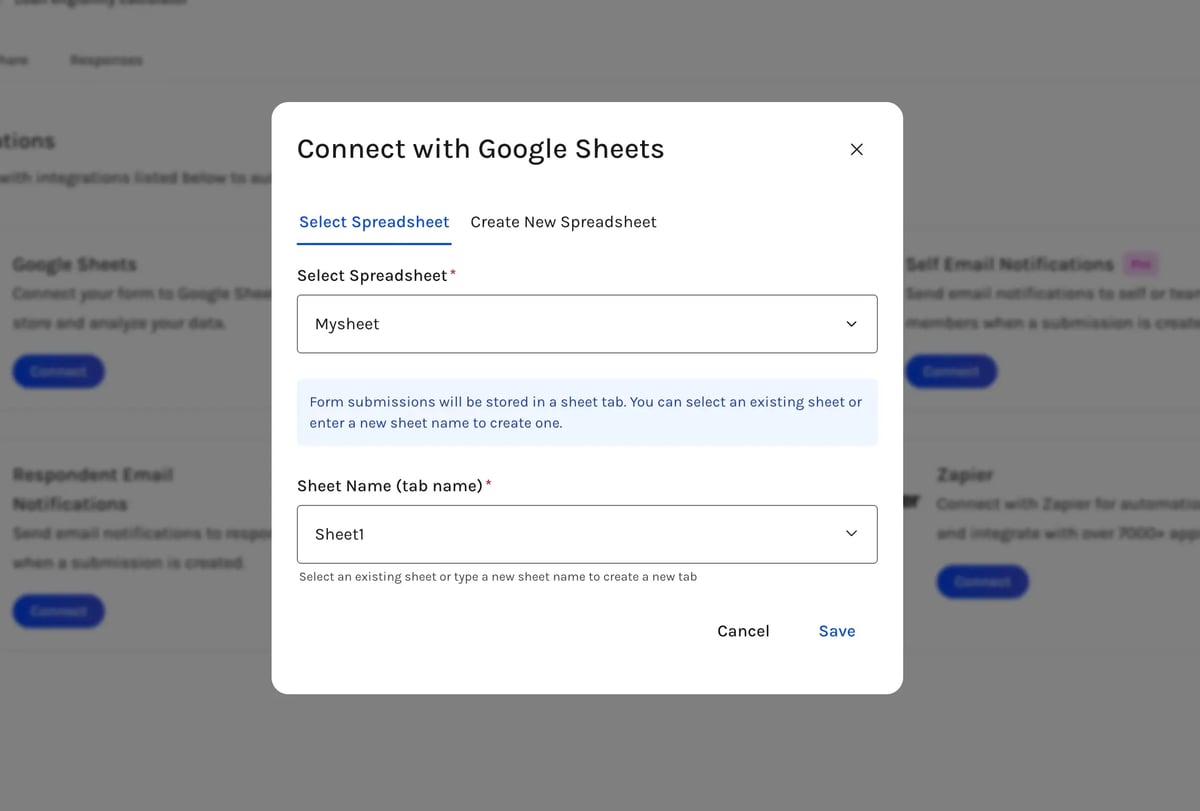
  2. Create a new spreadsheet or selecting existing.
Screenshot 2026-04-02 at 4.35.36 PM

Once connected, you’ll see a list of your existing Google Spreadsheets. Choose a spreadsheet and either select an existing sheet name or create a new one.
💡

Note: While you're free to use the same spreadsheet for multiple forms, always create a different sheet name for each form. Using the same sheet name across different forms will overwrite previous data and cause issues.

Spreadsheet vs Sheet

  • A spreadsheet is the overall file in your Google Drive (like "Leads Q1 2025").
  • A sheet is a tab within that spreadsheet (like "Contact Form", "Feedback", etc).

This setup is especially helpful if you're syncing multilingual forms into a single spreadsheet. Each language-specific form can write to its own sheet tab.

Removing the integration

If you no longer want to send submissions to Google Sheets:

  1. Go to the Integrations tab in your form settings
  2. Find the Google Sheets connection and click the Delete button
  3. Confirm the deletion

Note: Removing the integration only stops future submissions from being sent to the spreadsheet. Any data already in your Google Sheet will remain untouched.

View logs

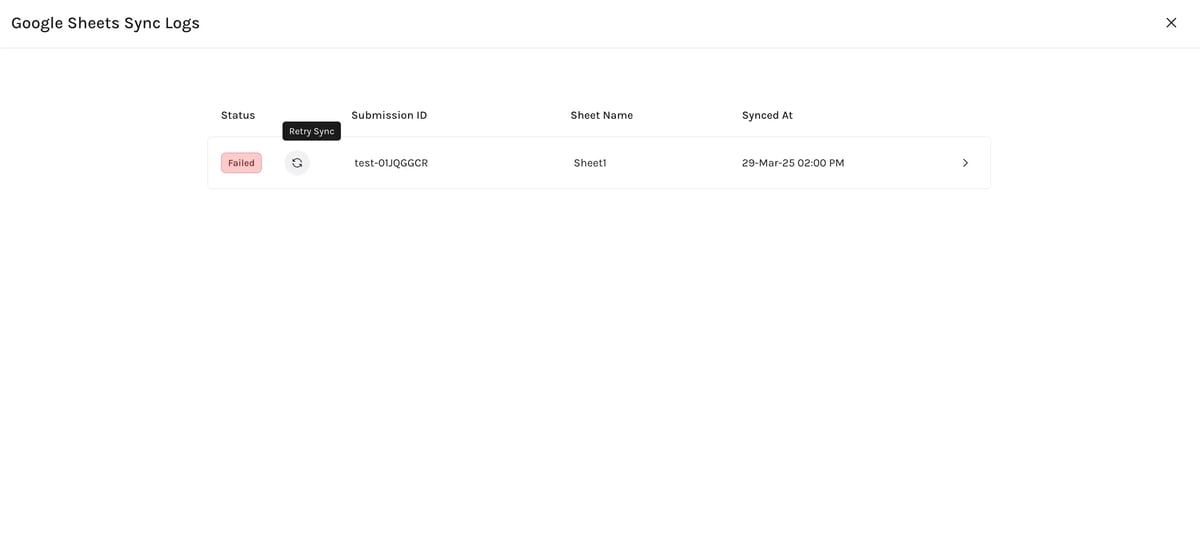
Each submission synced to Google Sheets is logged.

  • You can view logs of google sheets by clicking on View logs buton.
  • Logs show the sync status, any errors, and timestamps.
  • If there's an issue syncing, check the logs for more context. Common issues include deleted spreadsheets or renamed sheets.
  • If a sync fails, you can manually retry by clicking the Resync icon button next to the date column in the logs.