Custom Code Injection - Minform Help
minformMinform
Create a form

  • Create a form
  • Embed your form
  • Page types
  • Using Keyboard Shortcuts
  • Form History (versioning)
  • Spaces and Team members
  • View Responses

  • Zapier Integration
  • Meta (Facebook) Pixel
  • Google Analytics
  • Webhooks
  • Email notifications
  • Sync forms with google sheets

  • Form Analytics Dashboard
  • Mastering AI Prompts for Form Modification
  • Custom Code Injection
  • How to setup custom domain for your forms
  • AI Credit System for Minform
  • How to rename forms
  • How to assign scores to quiz forms
  • Enabling RTL (Right to Left) support
  • How to auto-save form response
  • Conditional Logic, Calculator, and Variable Mentions
  • How to create a multi column form
  • How to add a progress bar to a form
  • How to create a quiz form with time limit
  • Building Outcome & Personality Quizzes with AI
  • Collect Payments on Your Forms with Stripe
  • Auto-generating feedback for quiz with AI
  • Show Quiz Answers on Results Page
  • How to customize error messages in minform
  • Timer Access Codes for Secure Quizzes
  • Add Media to Questions
  • How to Protect Forms with CAPTCHA
  • Translate Forms to Any Language
minformMinform

Build smarter quizzes and forms with AI. Product recommendations, lead qualification, assessments — describe what you need, AI builds it.

Become an Affiliate

Product

  • Features
  • Integrations
  • Pricing
  • AI Form Builder
  • AI Survey Builder
  • AI Quiz Maker
  • AI PDF to Quiz Maker
  • Lead Gen Quiz
  • Vocabulary Quiz Maker
  • Image to Quiz Maker

Free Tools

  • PDF to Quiz
  • Vocabulary Quiz
  • Spelling Test
  • Multiple Choice Quiz
  • YouTube to Quiz
  • URL to Quiz
  • Grammar Quiz
  • Reading Comprehension
  • Product Recommendation
  • True/False Quiz
  • Image to Quiz
  • View All Tools

Resources

  • Templates
  • Blog
  • Help Center
  • Changelog
  • Affiliate Program

Compare

  • Minform vs Typeform
  • Minform vs Google Forms
  • Minform vs JotForm
  • Minform vs SurveyMonkey
  • Minform vs Tally

Support

  • Privacy Policy
  • Terms of Service

© 2026 Minform. All rights reserved.

Custom Code Injection

Custom Code Injection allows you to run custom JavaScript on your forms. This is useful for integrating third-party tools like chat widgets, analytics, or custom tracking scripts.

NOTE : This feature is available on Business plan only and requires a Custom Domain.

Prerequisites

  1. Business Plan: You must be on a paid plan to use this feature.
  2. Custom Domain: You must have a custom domain connected and Active. The code will only run on forms accessed via your custom domain.

How to Add Custom Code

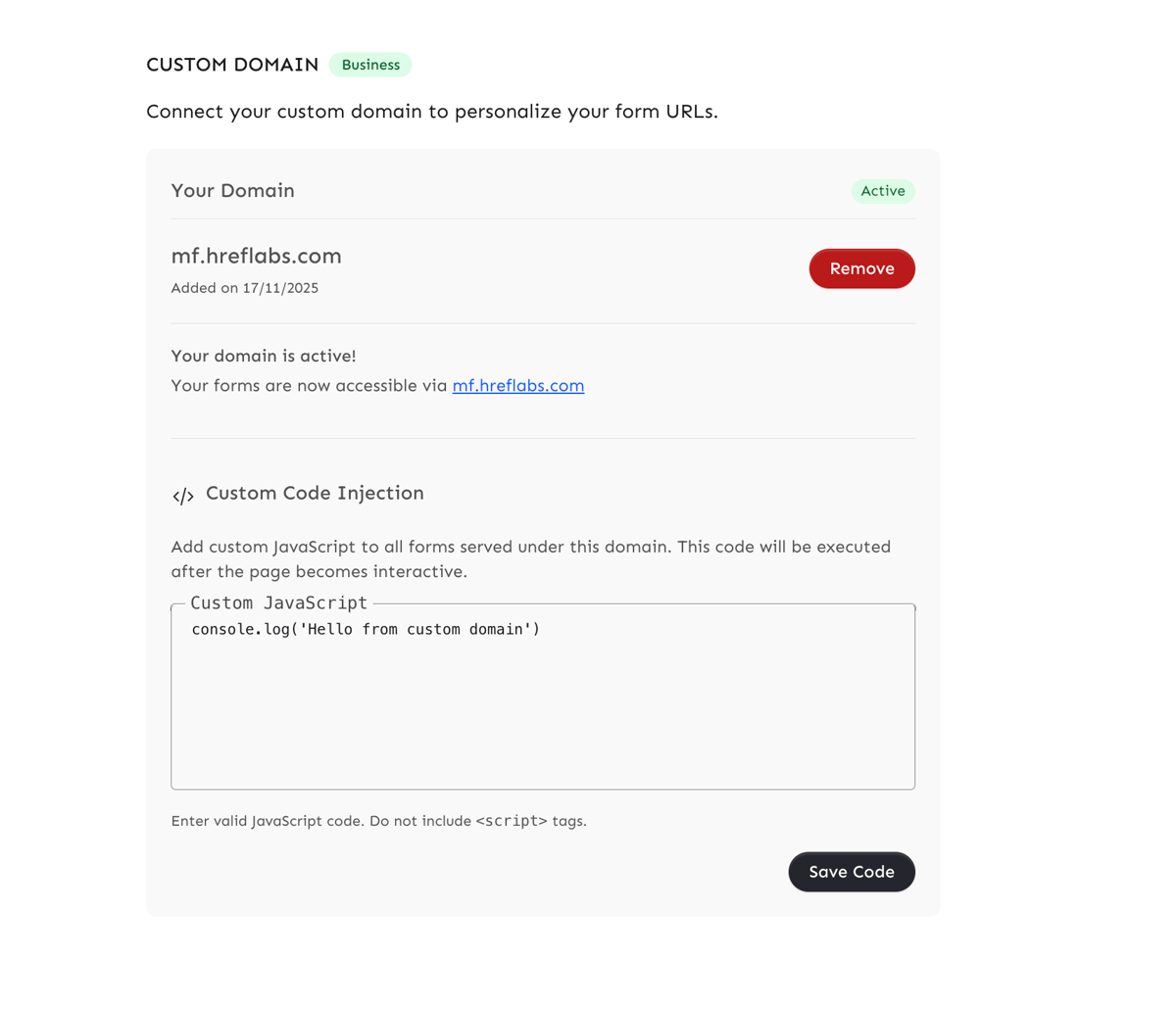
  1. Go to Settings in your dashboard.
  2. Scroll down to the Custom Domain section.
  3. Ensure your domain status is Active.
  4. Locate the Custom Code Injection block below your domain details.
  5. Enter your JavaScript code in the text area.
  6. Click Save Code.
Screenshot 2026-04-02 at 4.47.18 PM

Important Notes


  • No <script> Tags: Do not include opening or closing <script> tags. The system automatically wraps your code in a script tag. If you include them, they will be stripped out.
  • Execution Timing: Your code is executed using the afterInteractive strategy. This means it runs after the page becomes interactive (hydrated).
  • Scope: The code applies to all forms served under your custom domain.

Examples

1. Simple Console Log

console.log('Custom code running on Minform!');

2. Third-Party Tracking (Example)

If a tool gives you a snippet like this:

<script>  window.myTracker = window.myTracker || [];  window.myTracker.push('pageview');</script>

You should enter only the JavaScript part:

window.myTracker = window.myTracker || [];window.myTracker.push('pageview');