
How to Protect Forms with CAPTCHA - Minform Help
minformMinform
Create a form

  • Create a form
  • Embed your form
  • Page types
  • Using Keyboard Shortcuts
  • Form History (versioning)
  • Spaces and Team members
  • View Responses

  • Zapier Integration
  • Meta (Facebook) Pixel
  • Google Analytics
  • Webhooks
  • Email notifications
  • Sync forms with google sheets

  • Form Analytics Dashboard
  • Mastering AI Prompts for Form Modification
  • Custom Code Injection
  • How to setup custom domain for your forms
  • AI Credit System for Minform
  • How to rename forms
  • How to assign scores to quiz forms
  • Enabling RTL (Right to Left) support
  • How to auto-save form response
  • Conditional Logic, Calculator, and Variable Mentions
  • How to create a multi column form
  • How to add a progress bar to a form
  • How to create a quiz form with time limit
  • Building Outcome & Personality Quizzes with AI
  • Collect Payments on Your Forms with Stripe
  • Auto-generating feedback for quiz with AI
  • Show Quiz Answers on Results Page
  • How to customize error messages in minform
  • Timer Access Codes for Secure Quizzes
  • Add Media to Questions
  • How to Protect Forms with CAPTCHA
  • Translate Forms to Any Language
minformMinform

Build smarter quizzes and forms with AI. Product recommendations, lead qualification, assessments — describe what you need, AI builds it.

Become an Affiliate

Product

  • Features
  • Integrations
  • Pricing
  • AI Form Builder
  • AI Survey Builder
  • AI Quiz Maker
  • AI PDF to Quiz Maker
  • Lead Gen Quiz
  • Vocabulary Quiz Maker
  • Image to Quiz Maker

Free Tools

  • PDF to Quiz
  • Vocabulary Quiz
  • Spelling Test
  • Multiple Choice Quiz
  • YouTube to Quiz
  • URL to Quiz
  • Grammar Quiz
  • Reading Comprehension
  • Product Recommendation
  • True/False Quiz
  • Image to Quiz
  • View All Tools

Resources

  • Templates
  • Blog
  • Help Center
  • Changelog
  • Affiliate Program

Compare

  • Minform vs Typeform
  • Minform vs Google Forms
  • Minform vs JotForm
  • Minform vs SurveyMonkey
  • Minform vs Tally

Support

  • Privacy Policy
  • Terms of Service

© 2026 Minform. All rights reserved.

How to Protect Forms with CAPTCHA

Minform uses Cloudflare Turnstile to protect your forms from spam and bot submissions. Turnstile is a privacy-friendly CAPTCHA alternative — it verifies visitors without intrusive puzzles in most cases.

When enabled, a small verification widget appears on the last page of your form. Submissions are blocked unless the challenge is passed.

1. Enable CAPTCHA in Form Settings

  1. Open your form in the Editor.
  2. Click the Settings icon in the top toolbar (gear icon).
  3. Go to the Configurations tab.
  4. Under Form Behavior, toggle on Enable CAPTCHA.
  5. Save your changes.

That's it — your form is now protected.
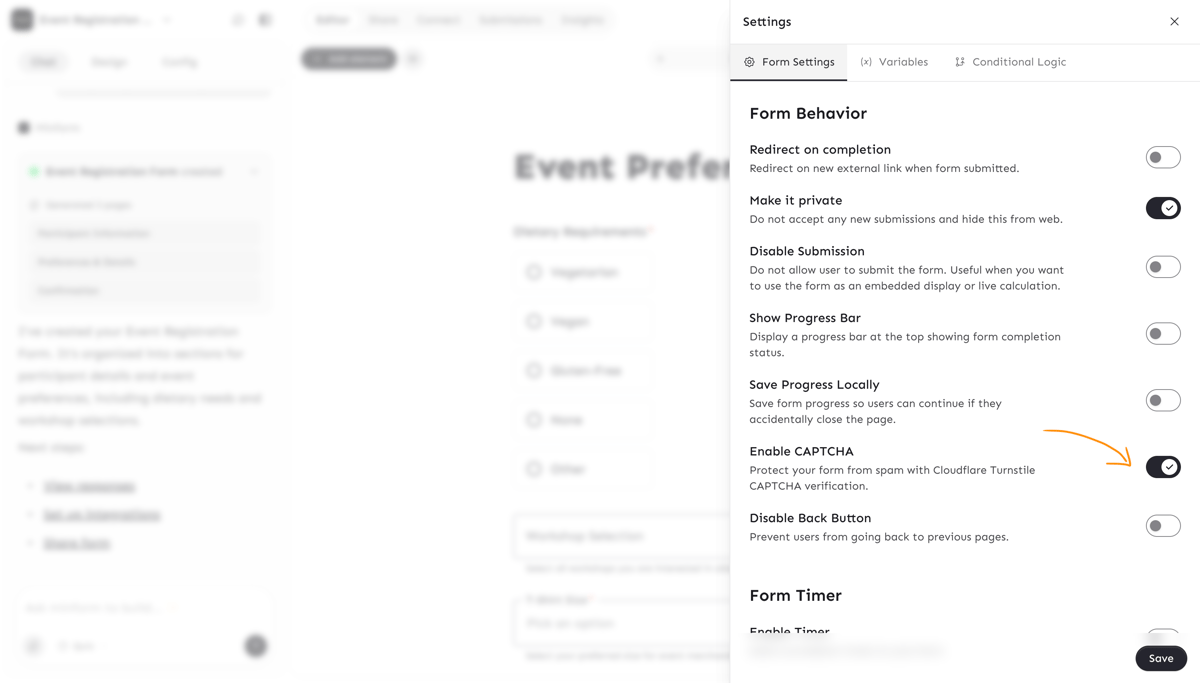
Screenshot 2026-04-05 at 6.44.52 PM


2. How It Works for Respondents

Once CAPTCHA is enabled:

  • The Turnstile widget appears on the last page of your form, just above the submit button.
  • In most cases, the verification completes automatically in the background — respondents won't need to solve a puzzle.
  • If Cloudflare detects suspicious behavior, it may present a quick interactive challenge.
  • The form cannot be submitted until the CAPTCHA is completed.

The widget adapts to your form's theme (light or dark mode) automatically.

3. When to Use CAPTCHA

CAPTCHA is recommended when:

  • Your form is publicly shared and receives spam submissions.
  • You're running a contest or giveaway form that bots might target.
  • You want an extra layer of protection on forms that collect sensitive data.

You may want to keep it disabled for:

  • Internal team forms where all respondents are trusted.
  • Forms where you want the absolute minimum friction for respondents.