 Minform
Conditional Logic, Calculator, and Variable Mentions
Conditional logic and calculator features enable you to create dynamic forms that respond to user input in real-time. This guide will walk you through how to use these powerful features to build interactive forms and calculators
What You Can Do with Conditional Logic and Calculators
- Show or hide questions based on previous answers
- Jump to different pages based on selections
- Calculate prices, scores, or other values automatically
- Create interactive experiences like quizzes and assessments
- Build helpful calculators for loans, pricing, shipping, and more
Access the logic builder
Click on gear icon in the editor header which open a sidebar. There you’ll see two tabs : Form Settings, Variables and Conditional Logic
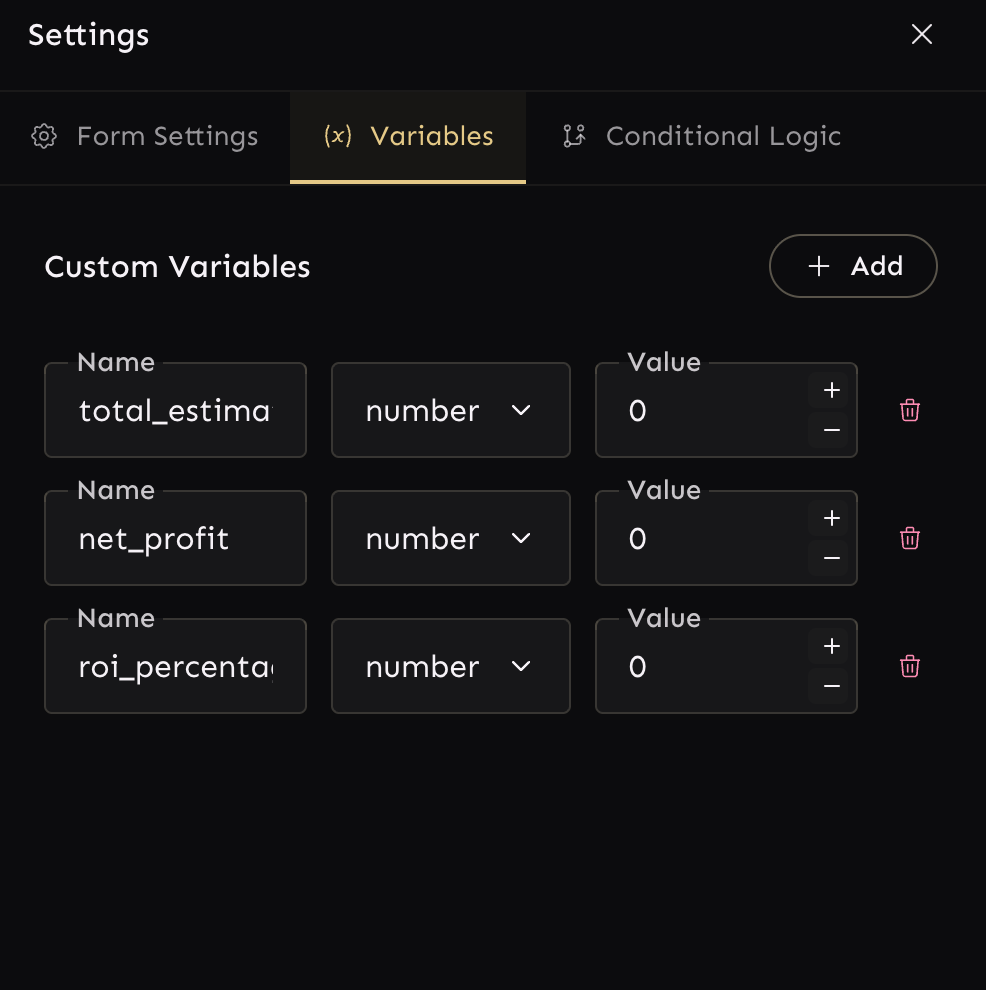
Understanding variables
Variables are like containers that can store information. They're useful for:
- Saving calculation results
- Storing temporary values
- Referencing values across your form using mentions
To create a variable:
- Go to Variables tab
- Click on Add button
- Give it a name like (
total_priceordiscount_amount) - Click Save
Using Variables and Mentions in Your Form
What Are Mentions?
Mentions allow you to reference variables or field values anywhere in your form using the @ symbol. This creates dynamic content that updates automatically.
How to Add a Mention
To refer to a variable or field in your form:
- Type
@in any text field where mentions are supported - A dropdown menu will appear showing available variables and fields
- Select the variable or field you want to reference
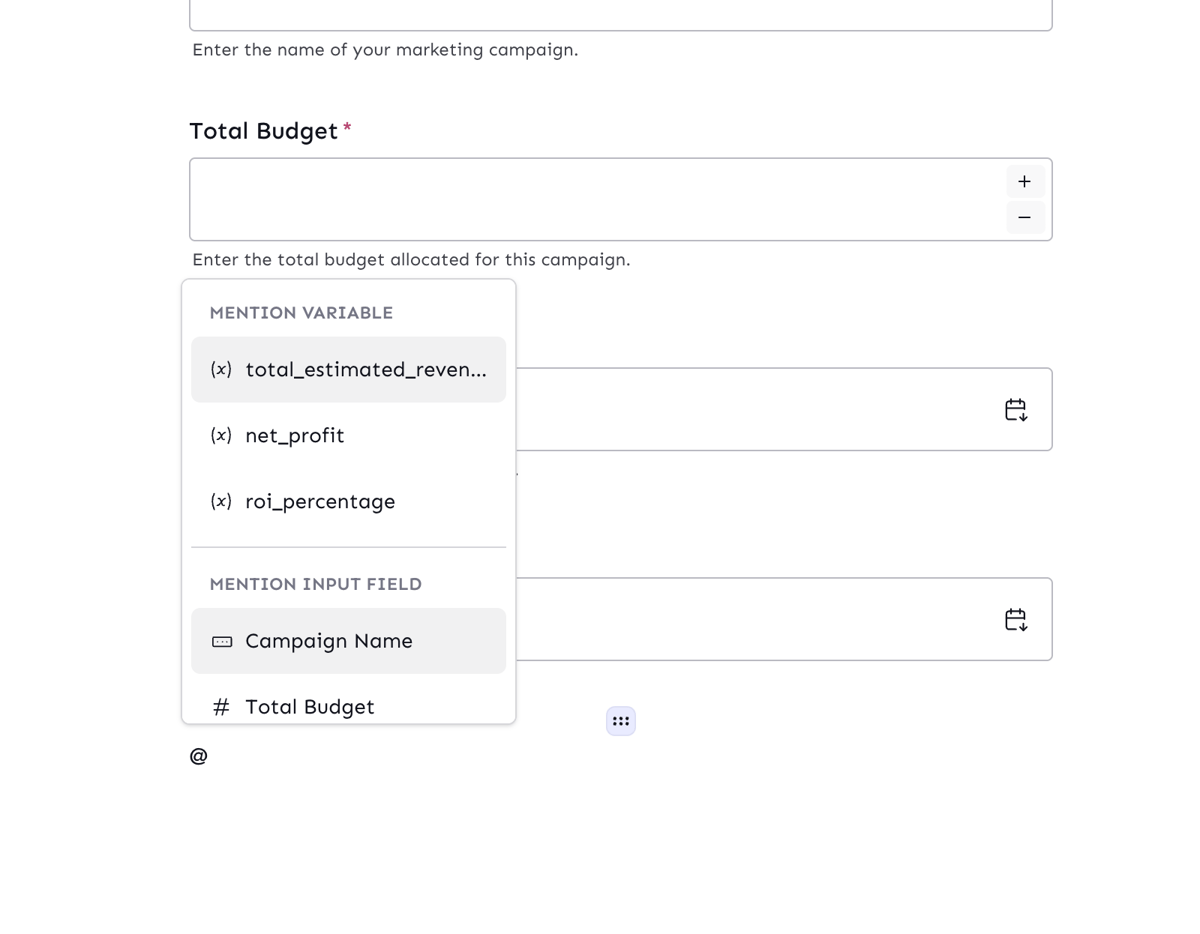
Example: Using mention to personalize your form
If you collect a user's name in a field called "Name", you can:
- Create a welcome message: "Hello
@Name, please complete this survey" - Personalize later questions: "Based on your previous answer,
@Name, we'd like to know..." - Customize your thank you page: "Thank you
@Namefor your submission"
Using conditional logic with actions
The logic builder uses an If-Then / Always structure. For eg
IF [Country = USA] THEN [Show shipping options]Condition Types:
- If: Logic runs only when conditions are met
- Always: Logic runs regardless of any conditions
Action Types
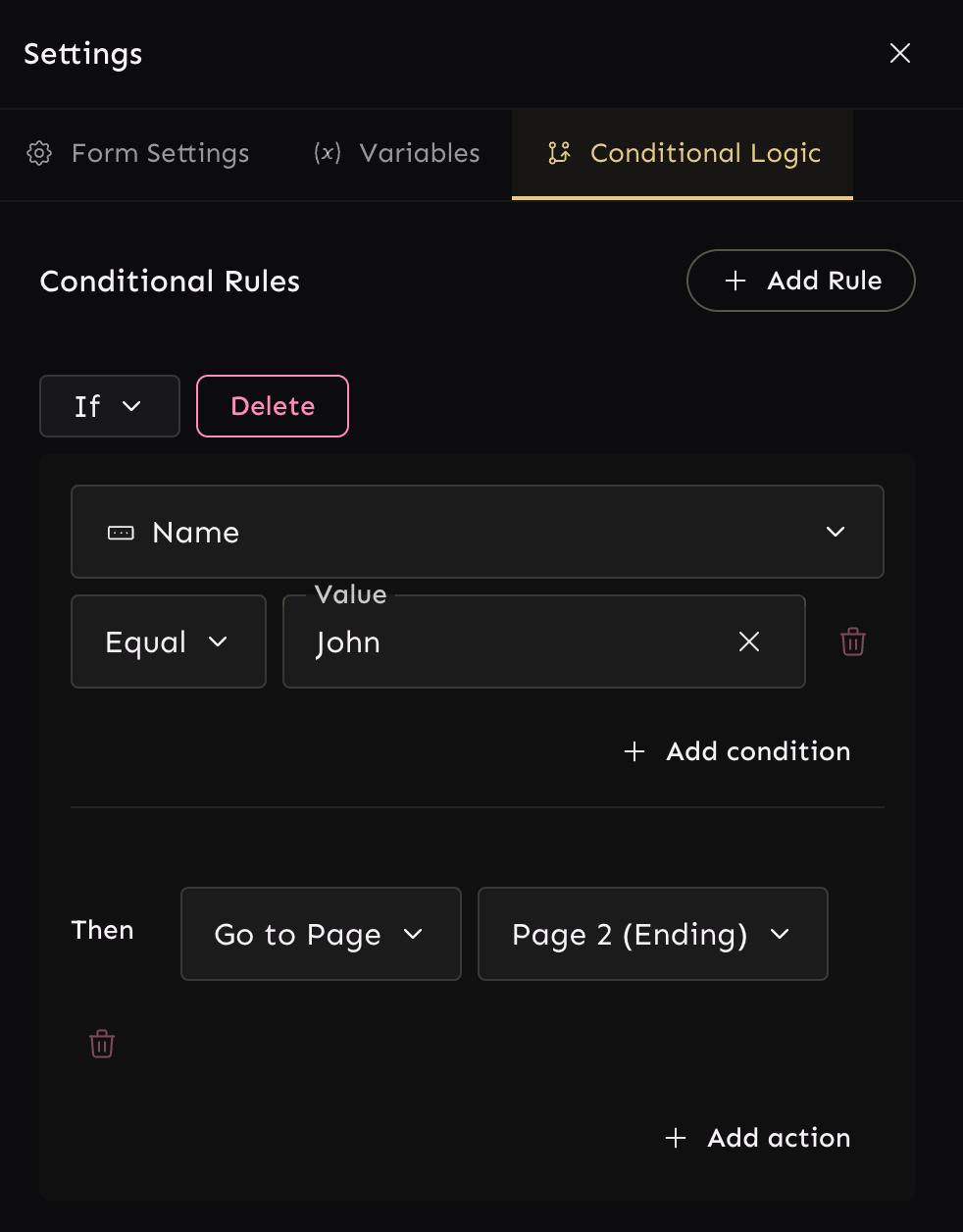
Go to page
Redirect users to different thank-you pages based on their input. This is useful for personalized user journeys.
Example:
- IF [User selects "Interested in Product A"] THEN [Go to Thank You Page A]
- IF [User selects "Interested in Product B"] THEN [Go to Thank You Page B]
This allows users to receive a customized thank-you message based on their selections.
Show/Hide blocks
Dynamically display or remove fields and sections based on user input.
To make show block action working, you need to first hide the block by default from field settings and then based on condition you can show the block as shown in video.
Calculate Action
The Calculate action deserves special attention because of its power and complexity. This action allows you to perform mathematical operations and store the results in variables. To check how powerful is calculate action, check out these templates:
- Adsense Calculator
- Compound Interest Calculator
- Wedding Quote Calculator
- Daily Calorie Intake Calculator
What Calculate Does
The Calculate action:
- Performs mathematical operations on form values and variables
- Stores the result in a target variable
- Updates in real-time as users enter information
- Can reference other calculated values
Below is the video on how to create a simple BMI calculator using simple AI prompt.
Advanced Calculate Features
Chaining Calculations
You can chain multiple calculations to build complex logic:
- Calculate a base value
- Use that calculated value in another calculation
- Create a third calculation that references the second one
This allows you to break down complex formulas into manageable pieces.
Combining with Other Actions
Calculations can be combined with other actions for powerful interactions:
- Calculate a value AND show/hide elements based on the result
- Calculate scores and jump to different result pages
- Calculate pricing and show different payment options